API
Compatibility
Small Pics provides API compatibility options for the following services:
signature/s - Transform signature
An optional hash used to verify that the transform URL hasn’t been modified.
Only needed when signed transforms are enabled for your image source.
ar - Aspect ratio
Sets the output aspect ratio. Use with a width or height to calculate the missing dimension, or with fit=crop to crop to the requested ratio.
Accepts either width:height or a decimal ratio. For example: ar=16:9 or ar=3.1667.
ar uses fit=crop and supports all crop positions, including crop=face and crop=facesarea. Other fit modes are overridden to be crop automatically.
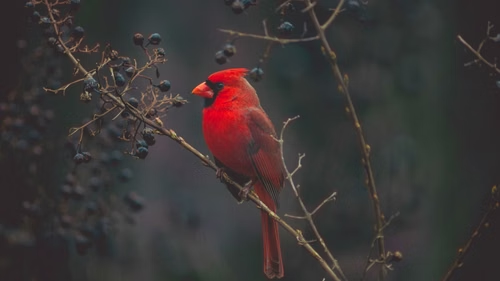
<img src="https://media.smallpics.io/bird.jpg?w=500&ar=16:9&fit=crop">
bg - Background color
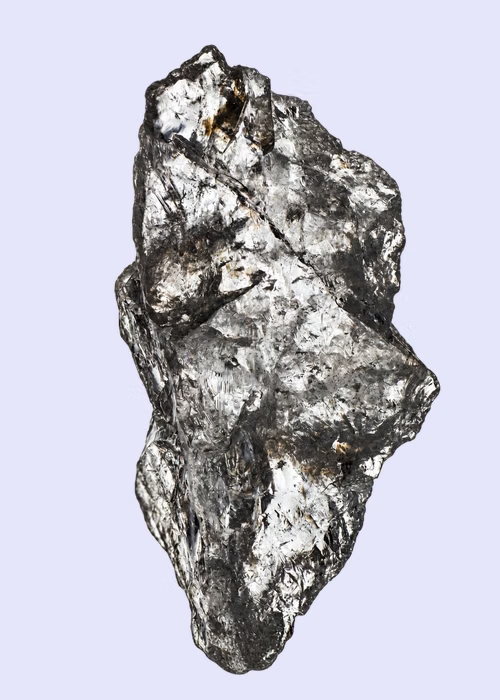
Defines the image’s background color. See colors for all supported formats.
<img src="https://media.smallpics.io/rock.png?w=500&bg=lavender">
border - Border
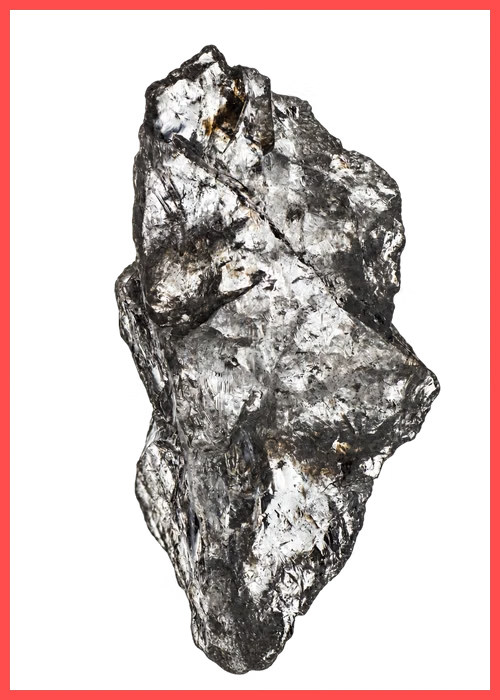
Applies a border around the image. Format: width,color,method.
<img src="https://media.smallpics.io/rock.png?w=500&border=10,ff4d4d,overlay">
Width
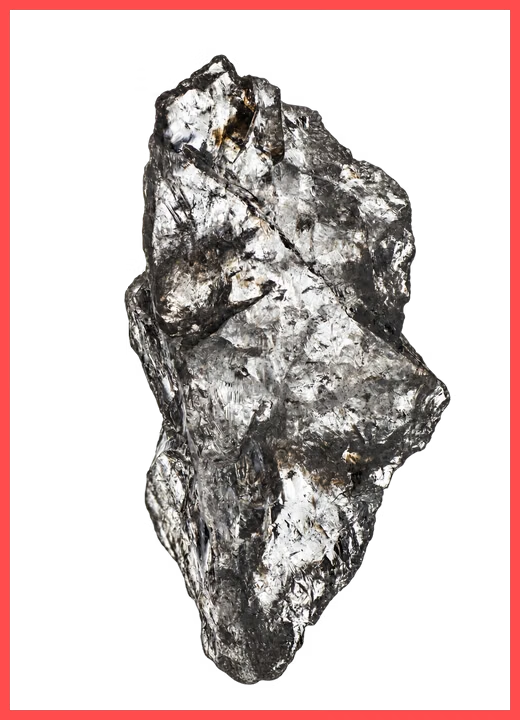
Specifies border thickness in pixels or using relative dimensions.
Color
Defines the border color. See colors for supported values.
Method
Determines how the border is applied. Options:
overlay: Draws the border over the image (default).shrink: Reduces the image area within the same canvas.expand: Expands the canvas to include the border.
<img src="https://media.smallpics.io/rock.png?w=500&border=10,ff4d4d,overlay">
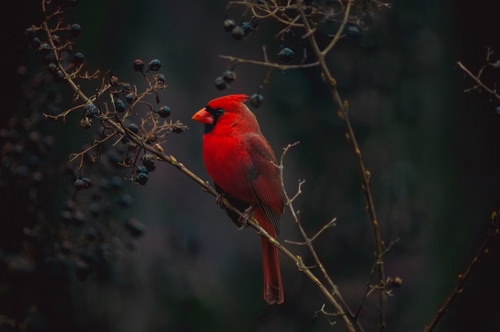
bri - Brightness
Controls brightness from -100 (darker) to +100 (brighter). 0 means no change.
<img src="https://media.smallpics.io/bird.jpg?w=500&bri=-25">
con - Contrast
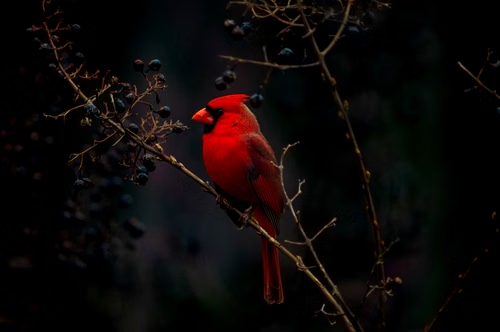
Controls contrast from -100 (less) to +100 (more). 0 leaves contrast unchanged.
<img src="https://media.smallpics.io/bird.jpg?w=500&con=25">
crop - Crop
Sets the crop position or extracts a rectangle before resizing.
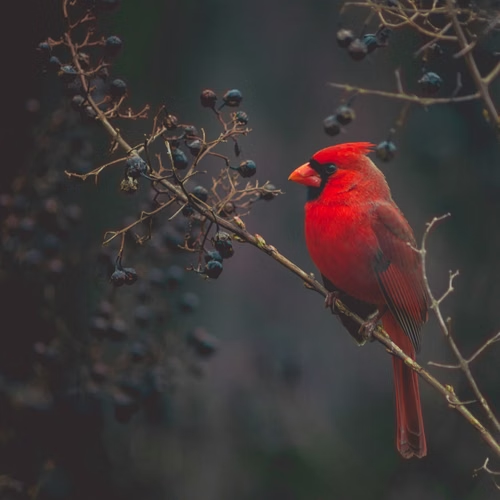
Position
When used with fit=crop, it accepts top-left, top, top-right, left, center, right, bottom-left, bottom, or bottom-right. Default: center.
If fp is set, it overrides the named position.
<img src="https://media.smallpics.io/bird.jpg?w=500&h=500&fit=crop&crop=top-left">
fit=crop-top-left, fit=crop-top, and the other named fit positions are deprecated. Use fit=crop with the crop parameter instead, fit=crop&crop=top.
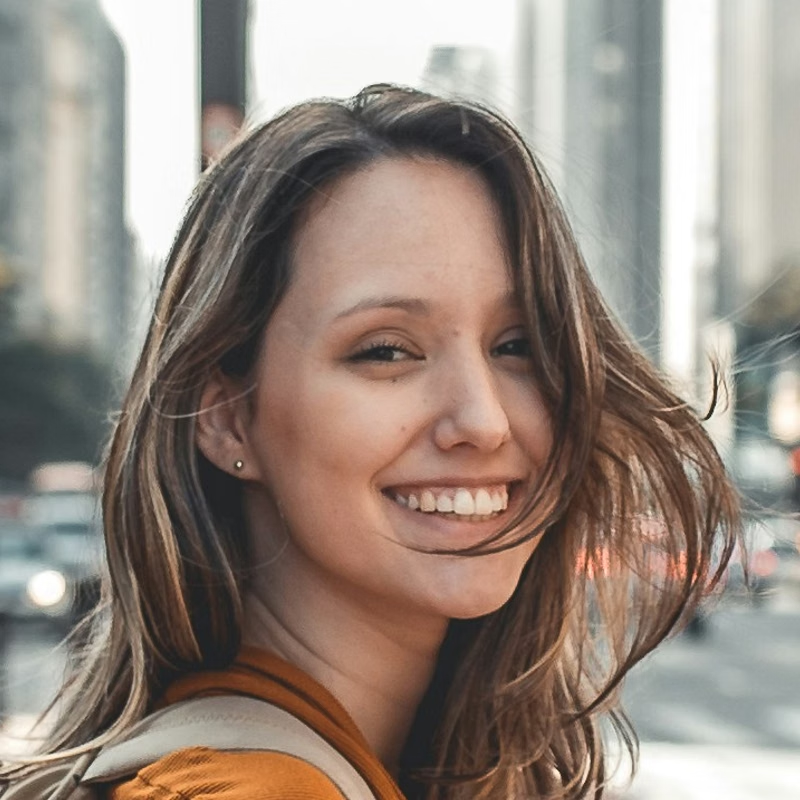
Face position
Use fit=crop&crop=face to center the crop on the selected face. It does not set the zoom level.
Optionally, use face to choose a face.
With face detection:
<img src="https://media.smallpics.io/street-portrait.jpg?fit=crop&crop=face&h=800&w=800&zoom=5">
Without face detection:
<img src="https://media.smallpics.io/street-portrait.jpg?fit=crop&h=800&w=800&zoom=5">
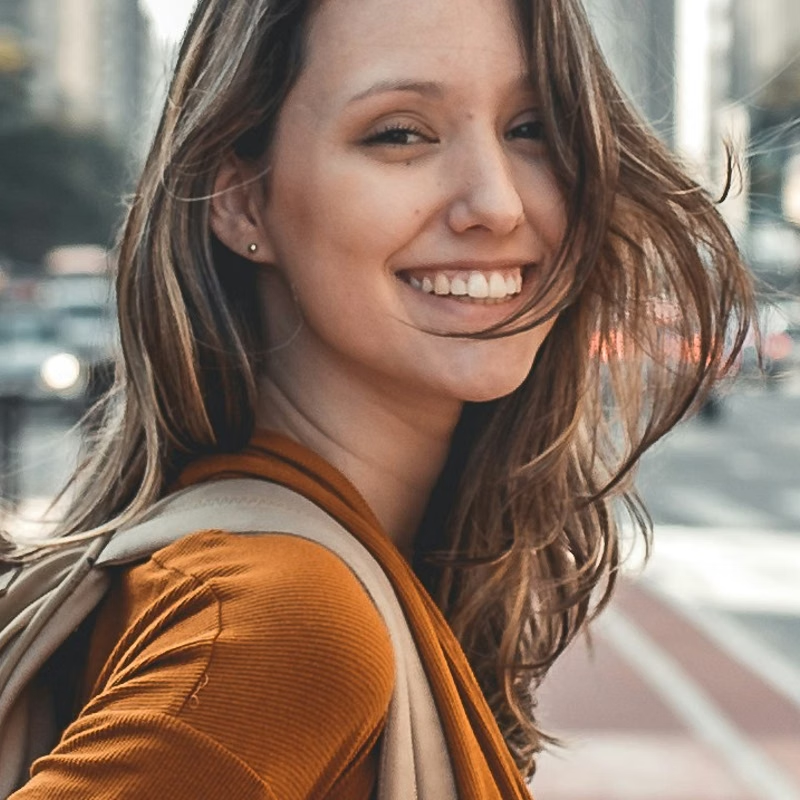
No-face fallback
When no matching face is found, crop=face uses the image center.
<img src="https://media.smallpics.io/bird.jpg?w=500&h=500&fit=crop&crop=face">
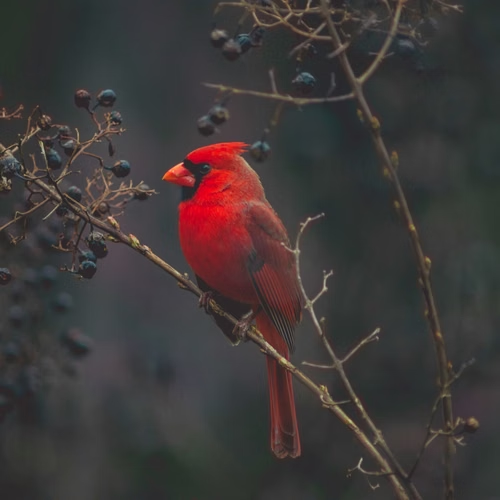
Setting the fallback
Add a named position after a comma, such as crop=face,top-left. With no matching face, this uses the top-left corner. fp overrides the fallback position if set.
<img src="https://media.smallpics.io/bird.jpg?w=500&h=500&fit=crop&crop=face,top-left&zoom=2.5">
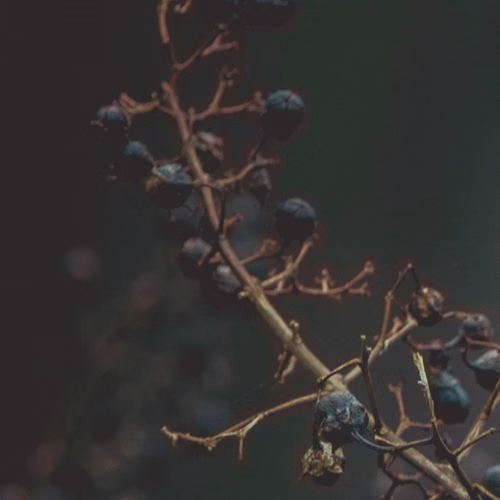
All-face position
Use fit=crop&crop=facesarea to center the crop on the box around all detected faces. It ignores face and does not zoom in. Use zoom=facesarea to frame the group.
Add a named fallback with crop=facesarea,top-left. With no fallback, it uses the image center when no faces are found.
<img src="https://media.smallpics.io/group-of-people.jpg?w=500&h=500&fit=crop&crop=facesarea">
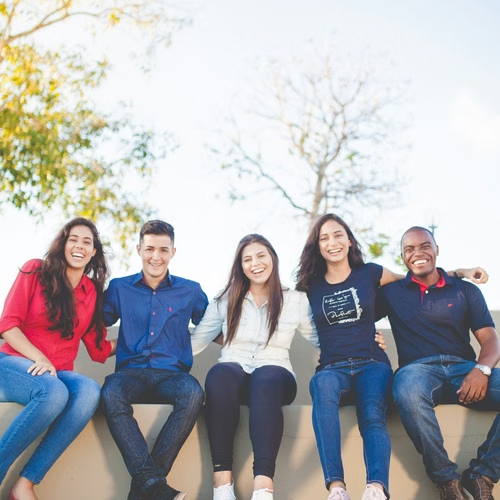
Rectangle
Use width,height,x,y to extract a rectangle before resizing.
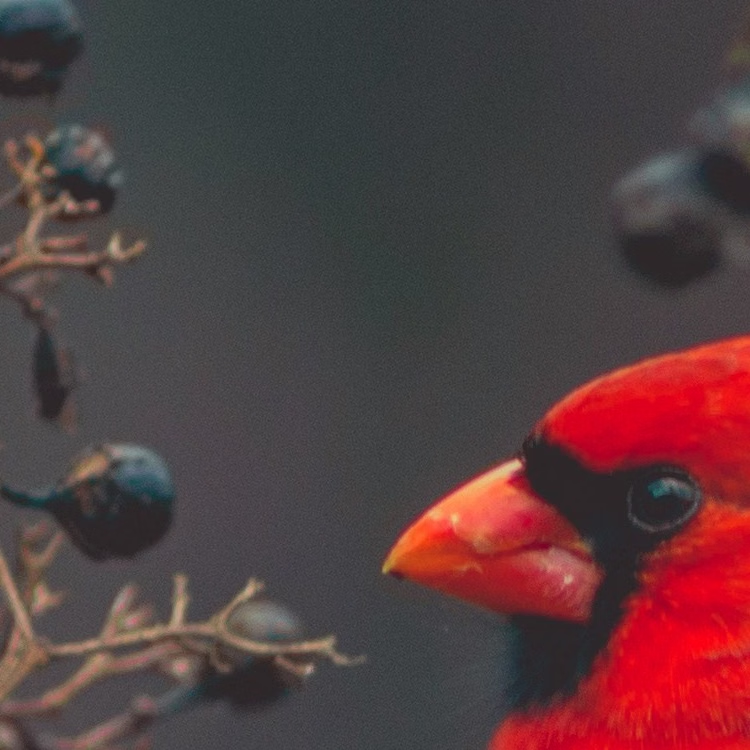
<img src="https://media.smallpics.io/bird.jpg?crop=100,100,915,155">
debug - Visual debugging
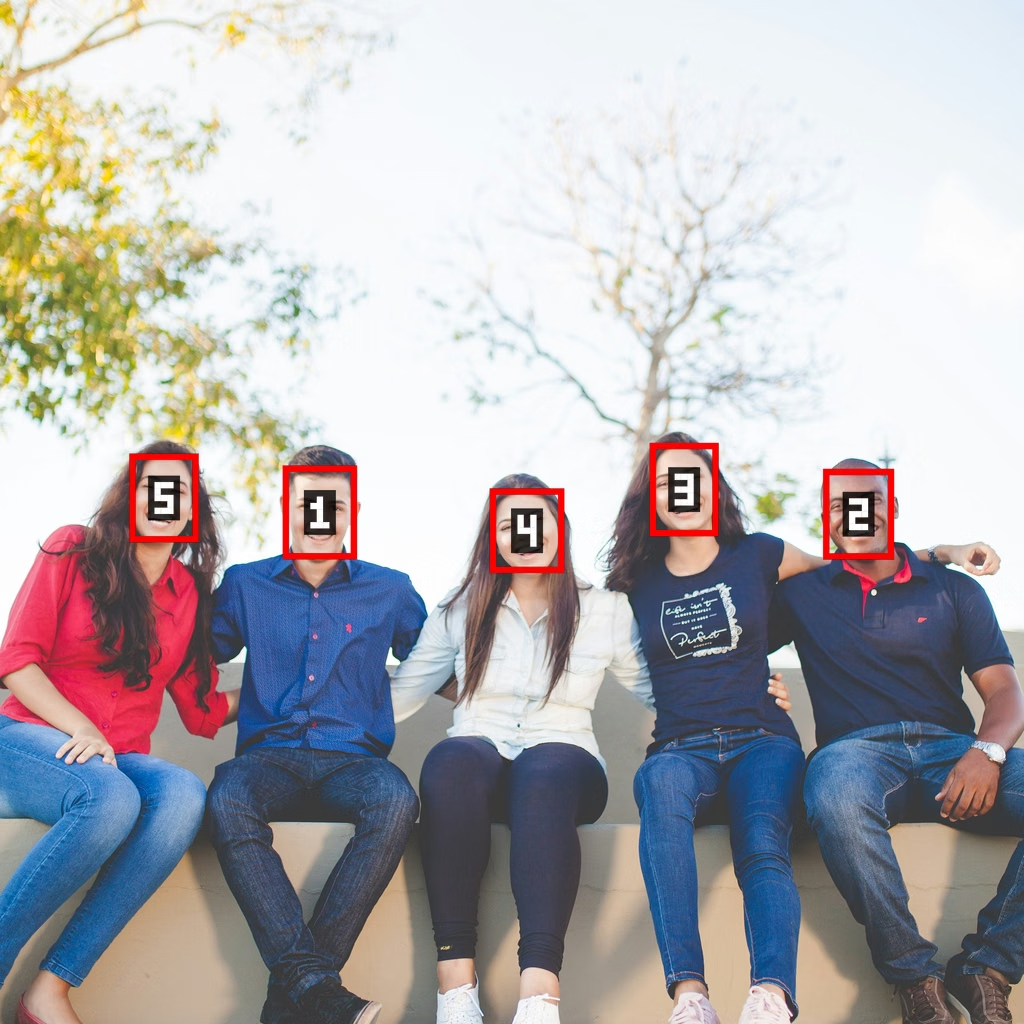
Set debug=1 to enable visual debugging.
With crop=face, crop=facesarea, zoom=face, or zoom=facesarea, red rectangles mark detected faces and show their indexes.
<img src="https://media.smallpics.io/group-of-people.jpg?w=1024&h=1024&fit=crop&crop=face&debug=1">
dpr - Device Pixel Ratio
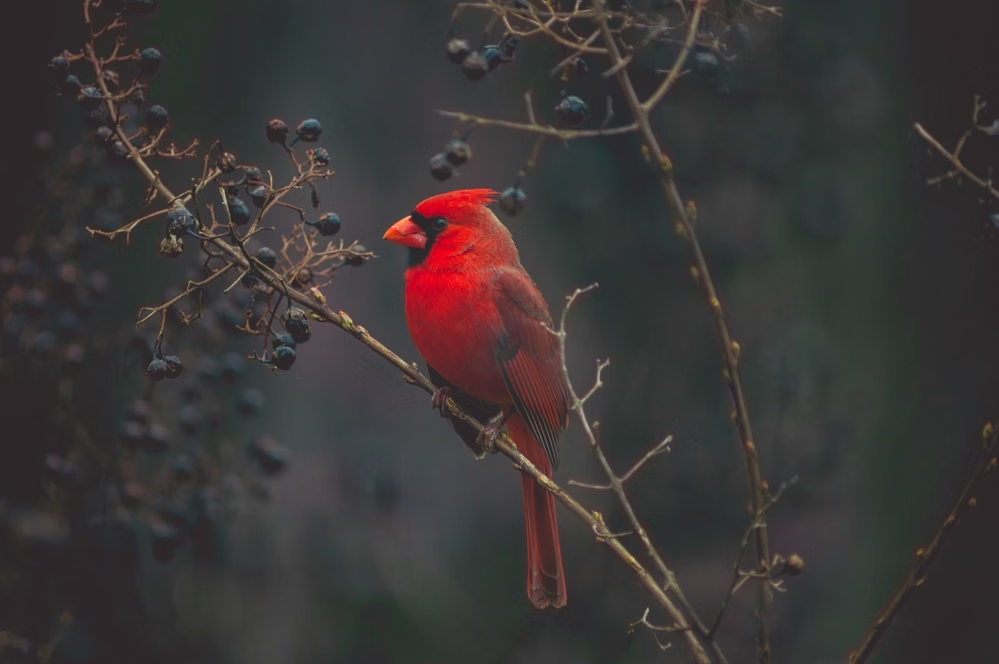
Adjusts rendering for different device pixel densities (e.g. Retina displays). Requires a width or height. Default: 1. Maximum: 8.
<img src="https://media.smallpics.io/bird.jpg?w=500&dpr=2">
face - Face index
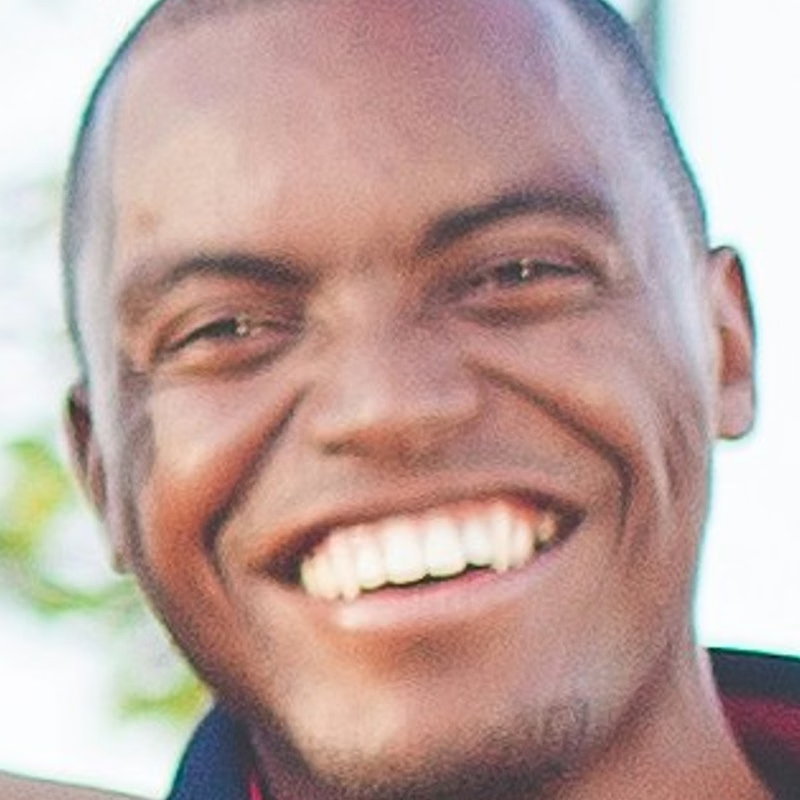
Selects a detected face. Default: 1, the first face. Accepts positive integers.
Use with crop=face or zoom=face. If the selected face is missing, their fallbacks apply.
crop=facesarea and zoom=facesarea ignore this index and use all detected faces.
<img src="https://media.smallpics.io/group-of-people.jpg?zoom=face&face=2&h=800&w=800&zoompad=3p">
See the no-face fallback examples for images without faces.
fit - Fit
Accepts
contain: Default. Fits within dimensions, maintaining aspect ratio.max: Fits within dimensions without enlarging smaller images.fill: Fits without cropping; fills gaps with background color.fill-max: Likefill, but upscales smaller images.stretch: Forces image to exact dimensions, ignoring aspect ratio.crop: Crops to fill area without distortion.
crop - Crop to fill
Crops to fill both width and height while maintaining aspect ratio.
cover is an alias of crop. Its use is deprecated.
<img src="https://media.smallpics.io/bird.jpg?w=500&h=500&fit=crop">
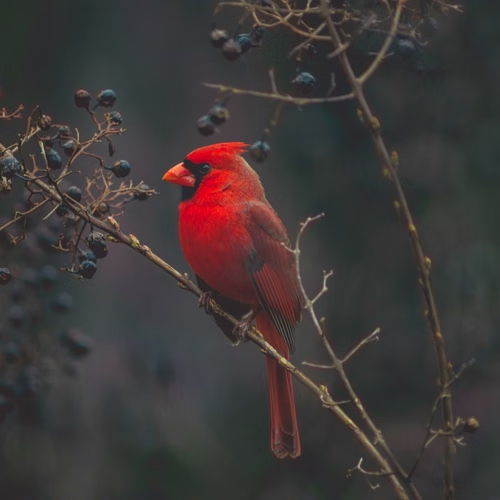
Use crop to choose the crop position.
Focal point
Use fit=crop with fp to crop around a point in the image.
<img src="https://media.smallpics.io/bird.jpg?w=500&h=500&fit=crop&fp=45w:25h">
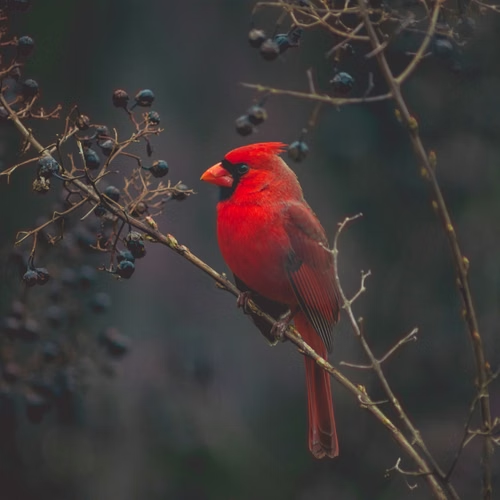
fit=crop-45-35 syntax is deprecated. Use fit=crop&fp=45p:35p instead.
fit=crop-45-35-2.5 is also deprecated. Use fit=crop&fp=45p:35p&zoom=2.5 instead.
flip - Flip
Flips the image vertically (v), horizontally (h), or both.
<img src="https://media.smallpics.io/bird.jpg?h=500&flip=v">
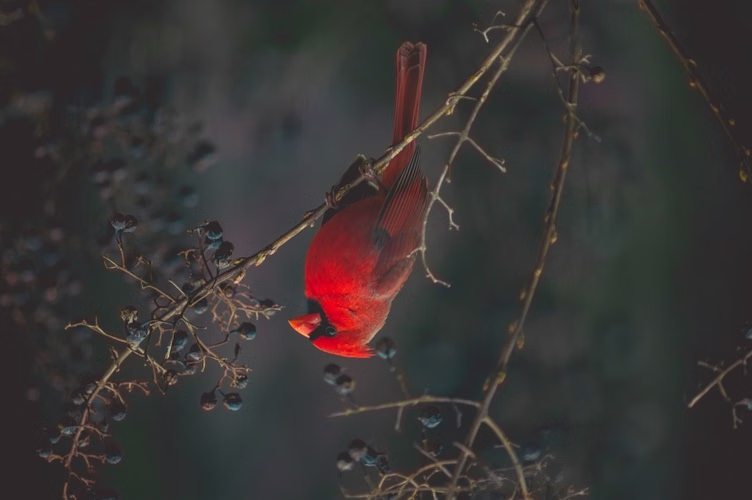
fm - Format
Forces output to a specific format: avif, webp, jpg, pjpg, png, gif or jxl. Default: avif.
<img src="https://media.smallpics.io/bird.jpg?w=500&fm=gif">
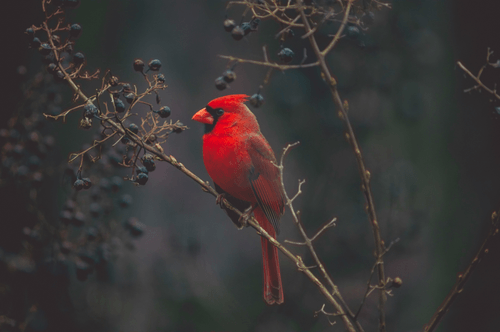
fp - Focal point
Sets the focal point for fit=crop. Use x:y, measured from the top-left corner.
Values are in pixels or relative dimensions.
fp=10:10: 10 source pixels across and down.fp=10p:10p: 10% of the source width across and 10% of its height down. Same asfp=10w:10h.fp=10p: repeats the value on both axes. Same asfp=10p:10p. A single pixel,w, orhvalue works too.
You can mix units, such as fp=100:25p. Explicit w and h units always use that dimension, regardless of the axis.
Coordinates use the image after orientation, flip, and crop are applied. Points outside the image are clamped to its edges.
fp overrides the position in a cropping fit and also works with numeric zoom. For face crops, detected faces take priority; fp sets the point for the crop fallback.
<img src="https://media.smallpics.io/bird.jpg?w=500&h=500&fit=crop&fp=10p:10p">
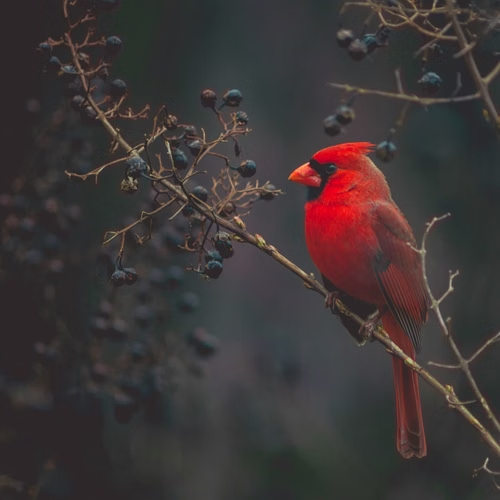
gam - Gamma
Adjusts gamma levels between 0.1 and 9.99.
<img src="https://media.smallpics.io/bird.jpg?w=500&gam=1.5">
h - Height
Sets image height in pixels or relative dimensions. h=65p uses 65% of the source height after orientation and rectangle cropping, before resizing and DPR. If w is omitted, width follows the aspect ratio.
<img src="https://media.smallpics.io/bird.jpg?h=500">
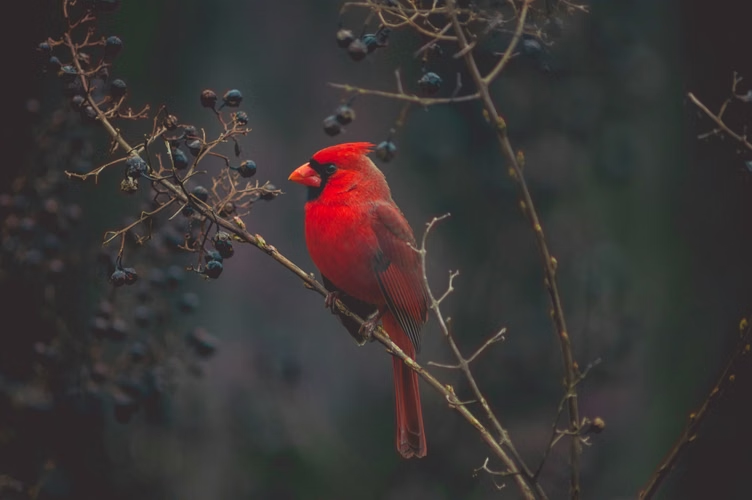
interlace - Interlace
Defines whether the image loads progressively. Improves perceived loading speed on slower networks.
For GIF and PNG formats, enabling this may slightly increase file size.
Supported Formats
- JPG: Enables progressive scan.
- PNG and GIF: Enables interlacing.
When using
.pjpg, the image is automatically generated as a progressive JPEG regardless of this setting.
<img src="https://media.smallpics.io/bird.jpg?interlace=1">
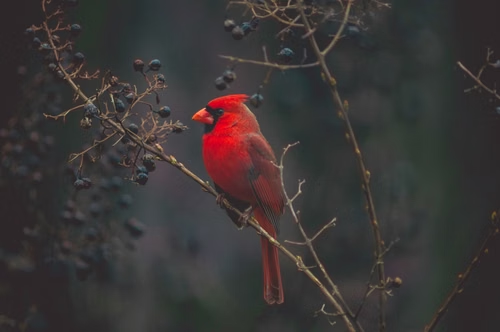
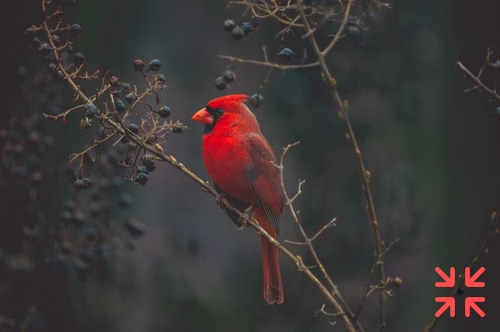
mark - Watermark
Adds a watermark image from your configured watermarks directory.
<img src="https://media.smallpics.io/bird.jpg?mark=logo.svg">
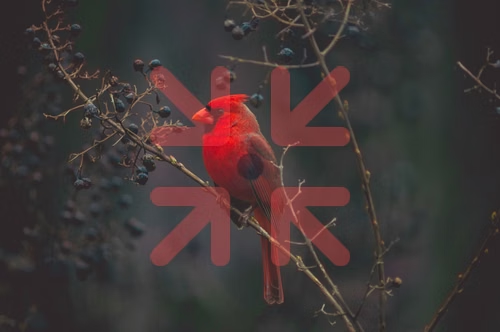
markalpha - Watermark opacity
Controls watermark transparency (0–100). 100 = fully opaque, 0 = fully transparent. Default: 100.
<img src="https://media.smallpics.io/bird.jpg?mark=logo.svg&markalpha=35">
markfit - Watermark fit
Defines how the watermark scales to its size constraints.
Accepts:
contain: Default. Fits within width/height while preserving aspect ratio.max: Fits within bounds without enlarging smaller images.fill: Fits without cropping; fills gaps with background color.stretch: Forces to dimensions, ignoring aspect ratio.crop: Resizes to fill, preserving aspect ratio. See crop.entropy: Crops to fit based on entropy measures.attention: Crops to a feature most likely to draw human attention.
<img src="https://media.smallpics.io/bird.jpg?mark=logo.svg&markw=200&markh=200&markfit=crop">
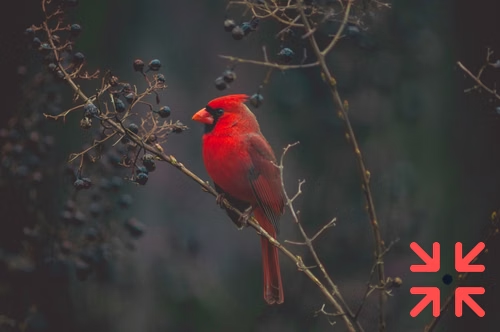
markh - Watermark height
Sets watermark height in pixels or relative dimensions.
<img src="https://media.smallpics.io/bird.jpg?mark=logo.svg&markh=200">
markorigin - Watermark image source
Specifies the image source for the watermark. If not set, the current source is used.
markpad - Watermark padding
Sets horizontal and vertical offsets from the selected edges.
Overrides numeric markpos coordinates, and is ignored when markpos=center.
Use markpad=x:y, or one value for both axes. For example, markpad=10:20 adds 10 pixels horizontally and 20 vertically. markpad=10 means markpad=10:10.
Values can be in pixels or relative dimensions.
<img src="https://media.smallpics.io/bird.jpg?mark=logo.svg&markw=200&markpad=20">
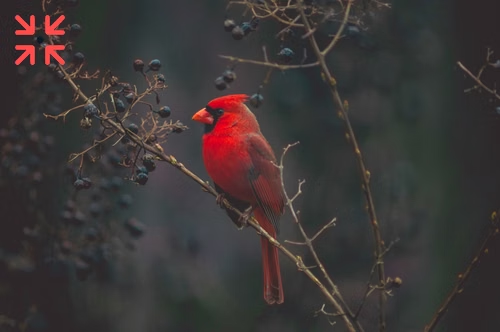
markpos - Watermark position
Use markpos=x:y to place the watermark’s top-left corner at those coordinates.
One value applies to both axes: markpos=10p means markpos=10p:10p. Numeric markpos overrides markx and marky.
<img src="https://media.smallpics.io/bird.jpg?mark=logo.svg&markw=100&markpos=10p:20">
Values can be in pixels or relative dimensions.
Named positions also work. Options: top-left, top, top-right, left, center, right, bottom-left, bottom, bottom-right. Default: bottom-right.
<img src="https://media.smallpics.io/bird.jpg?mark=logo.svg&markpos=top-left">
markw - Watermark width
Sets watermark width in pixels or relative dimensions.
<img src="https://media.smallpics.io/bird.jpg?mark=logo.svg&markw=200">
markx - Watermark X-offset
Deprecated. Use markpos instead, or combination of markpos and markpad.
marky - Watermark Y-offset
Deprecated. Use markpos instead, or combination of markpos and markpad.
or - Orientation
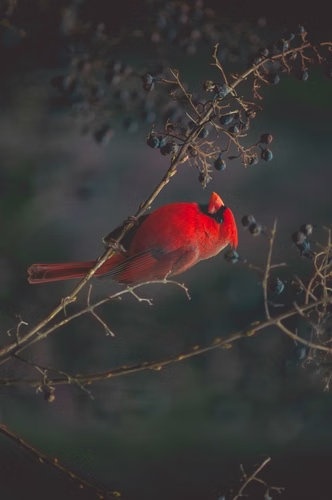
Rotates the image. Accepts: auto, 0, 90, 180, 270. Default: auto (uses EXIF data).
<img src="https://media.smallpics.io/bird.jpg?h=500&or=90">
q - Quality
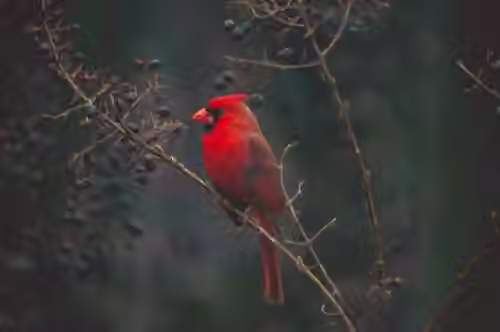
Sets output quality (0–100). Default: 90. Applies to jpg, pjpg, webp and avif.
<img src="https://media.smallpics.io/bird.jpg?w=500&q=25">
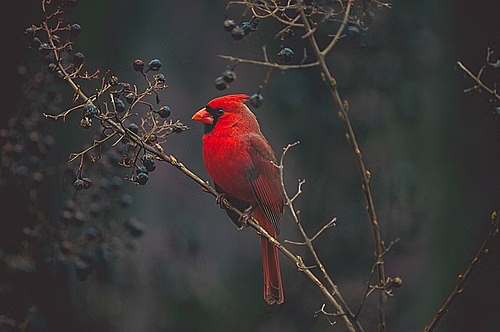
sharp - Sharpen
Increases sharpness between 0 and 100.
<img src="https://media.smallpics.io/bird.jpg?w=500&sharp=15">
w - Width
Sets image width in pixels or relative dimensions. w=65p uses 65% of the source width after orientation and rectangle cropping, before resizing and DPR. If h is omitted, height follows the aspect ratio.
<img src="https://media.smallpics.io/bird.jpg?w=500">
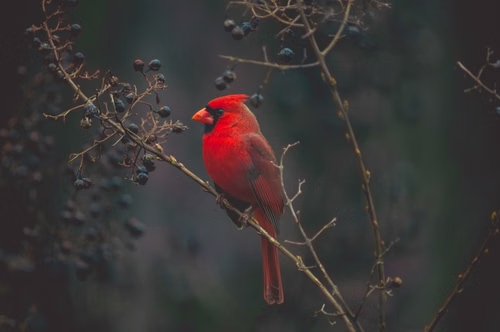
zoom - Zoom
Sets the zoom level around a focal point or detected face.
zoom=2.5: zooms in by 2.5×. Accepts1to100, where1is no zoom, and 100 is 100x zoom. Uses the focal point or named anchor, or the image center if neither is set.zoom=face: zooms into the selected face as far as the output shape allows.zoom=facesarea: zooms into the box around all detected faces. Ignoresface. See frame all faces.
Use zoom padding to include more of the image around the zoomed crop.
Use face to select a face. When matching faces are found, face-based zoom controls the crop and overrides fit, crop, and fp.
Add a numeric fallback with zoom=face,2.5 or zoom=facesarea,2.5. It applies when no matching face is found and uses the normal crop position or focal point. Without a fallback, the image uses its fit and position without extra zoom.
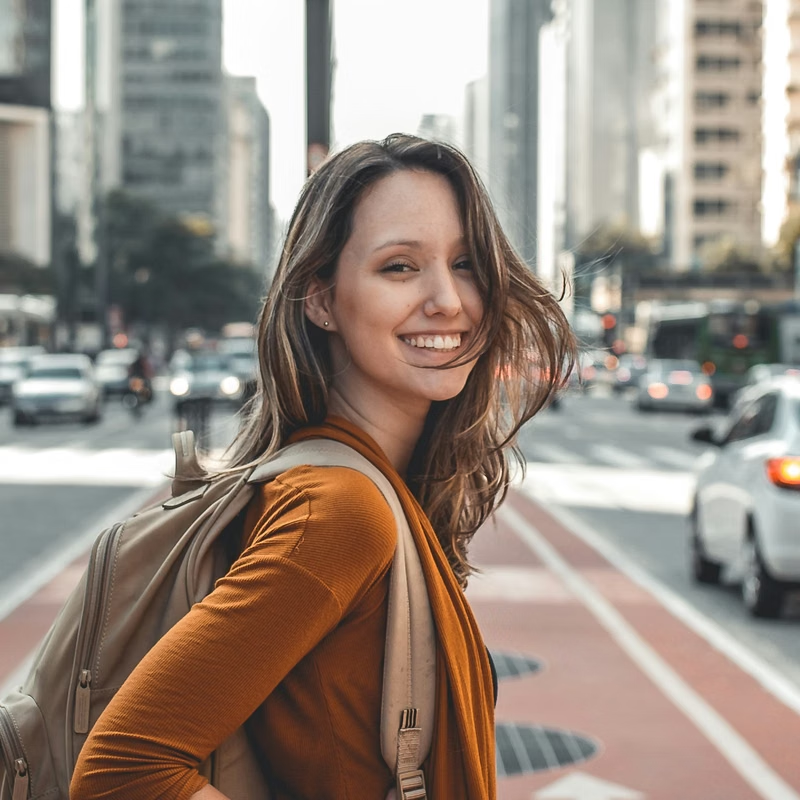
<img src="https://media.smallpics.io/street-portrait.jpg?zoom=face&zoompad=6p&h=800&w=800">
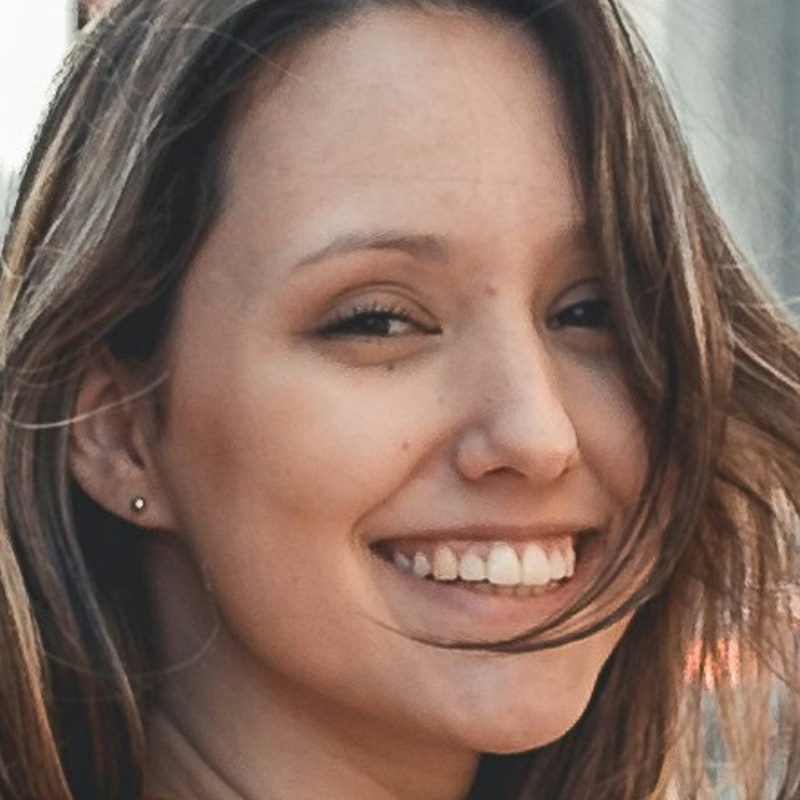
Numeric zoom also works without face detection:
<img src="https://media.smallpics.io/street-portrait.jpg?fit=crop&h=800&w=800&zoom=2.5">
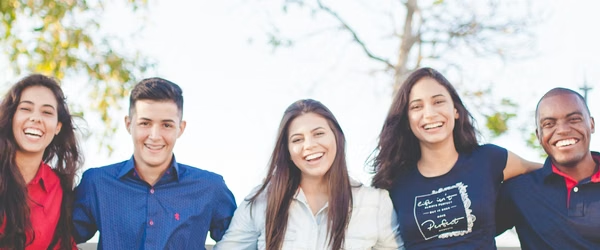
Frame all faces
Use zoom=facesarea to frame detected faces together. Add zoompad for more space around them.
If all faces cannot fit, the crop centers on the box around them and fills the requested dimensions. Some faces may fall outside the crop.
For example, faces in both bottom corners of a 1200×400 source produce the middle 400×400 crop when 400×400 is requested.
<img src="https://media.smallpics.io/group-of-people.jpg?w=600&h=250&zoom=facesarea&zoompad=2p">
zoompad - Zoom padding
Shows more of the source image around the zoomed crop. Works with numeric zoom, zoom=face, and zoom=facesarea.
Use zoompad=x:y, or one value for both axes. zoompad=10:20 adds 10 pixels on the left and right and 20 on the top and bottom. zoompad=10 means zoompad=10:10.
Values use the same syntax as markpad: pixels or relative dimensions. Decimals are also pixels. Default: 0, which adds no padding.
zoompad=10: adds 10 output pixels on each side.zoompad=10w: adds 10% of the output image width on each side.zoompad=10h: adds 10% of the output image height on each side.zoompad=10p: adds 10% of the output width horizontally and 10% of its height vertically.
Relative values use the output width and height after resizing, DPR, and the size limit, before borders. Pixel values scale with dpr, just like markpad.
Percentages accept 0 to 100. Padding stops at the source edges and keeps the requested output size and shape.
<img src="https://media.smallpics.io/street-portrait.jpg?zoom=face&zoompad=6p&h=800&w=800">
Relative dimensions
Use w for a percentage of image width, h for height, or p for the relevant axis. For example, 10p means 10w for x or width values and 10h for y or height values.
This applies to w, h, fp, watermark dimensions and offsets, markpad, zoompad, and borders. Shared values resolve each axis separately: markpad=10p sets x padding to 10% of the width and y padding to 10% of the height. For borders, left and right thickness use width; top and bottom use height.
For w and h, relative values use the source dimensions after orientation and rectangle cropping. Resolved sizes are rounded to whole pixels; zero sizes are ignored. Animations use each frame’s dimensions.
Relative values range from 0 to 100. Use explicit w or h units when both axes should use the same dimension. For example, when adding a border.
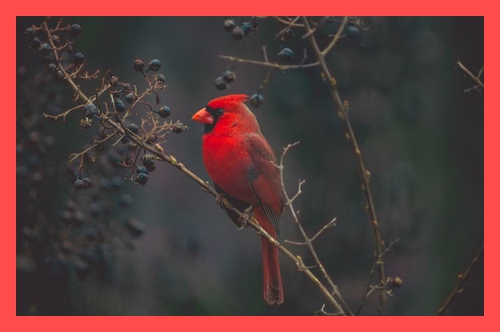
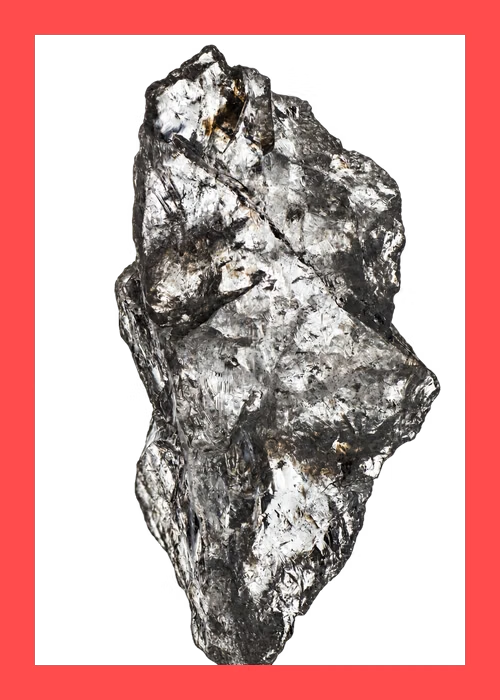
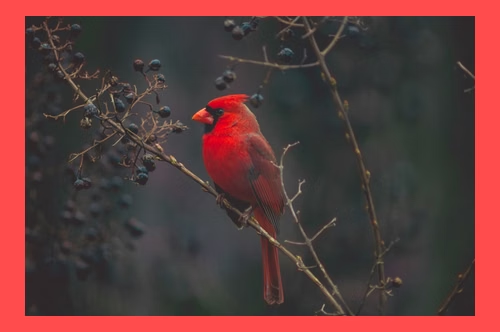
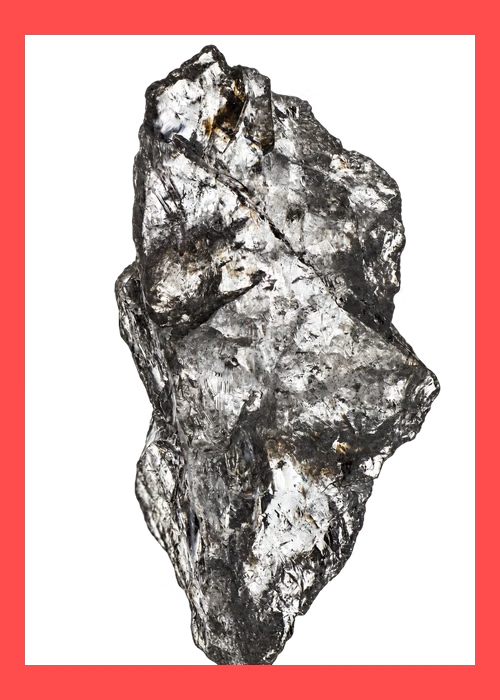
These examples show how the border thickness is based on the output size.
Using a value relative to an axis will make the border thickness equal on all sides, based off the output axis size:
Using a percentage value will add a border thickness based on each axis:
Colors
Color values can be provided in several formats.
Hexadecimal
- 3-digit RGB:
ccc - 4-character alpha + RGB:
5ccc(50% opacity) - 6-digit RGB:
cccccc - 8-character alpha + RGB:
55cccccc(55% opacity)
When setting colors that support alpha, the alpha prefix is decimal, while the RGB color is hexadecimal. A one-digit alpha prefix accepts 0–9 (0%–90% opacity); a two-digit prefix accepts 00–99 (0%–99%). 00 is fully transparent.
For 100% opacity, omit the alpha prefix and use a 3- or 6-digit RGB color. For example, 50ff4d4d is 50% opaque, 99ff4d4d is 99% opaque, and ff4d4d is fully opaque.
Color names
Named colors are also supported.